Alerting
Get notified when your retrieval quality degrades. Seer's alerting system monitors your metrics and sends webhook notifications when thresholds are breached.
Prerequisites: You have data flowing through Seer (see Quickstart) and understand Metrics.
Default Alerts
When you onboard, Seer automatically creates three default alerts:
| Alert | Metric | Threshold | Window |
|---|---|---|---|
| Quality Drop - Recall | Recall | -20% drop | 24 hours |
| Quality Drop - Precision | Precision | -20% drop | 24 hours |
| Traffic Drop | Volume | -50% drop | 24 hours |
These alerts fire when the metric drops by the specified percentage compared to the previous period.
Default alerts are org-wide (all environments) with a 4-hour cooldown. Customize them in the Alerts page.
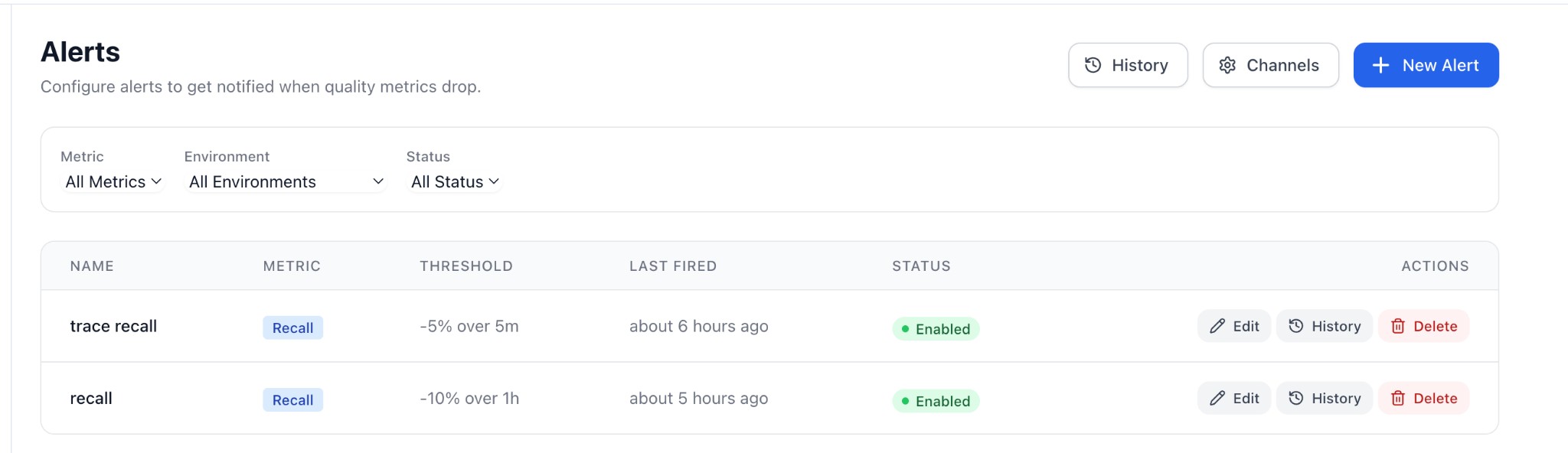
Alerts page showing configured alerts with metric type, threshold, last fired time, and status.
Alert Configuration
Metric Types
| Metric | Description |
|---|---|
| Recall | Fraction of requirements covered by context |
| Precision | Fraction of documents that support requirements |
| F1 | Harmonic mean of recall and precision |
| Volume | Number of evaluations in the window |
Threshold Types
| Type | Description | Example |
|---|---|---|
| Percent Drop | Alert when metric drops by X% vs previous window | -0.1 = 10% drop |
| Absolute | Alert when metric falls below X | 0.7 = below 70% |
Time Windows
Choose how much data to compare:
| Window | Use Case |
|---|---|
| 15 minutes | Fast detection, more noise |
| 1 hour | Balanced (recommended) |
| 6 hours | Smooth out daily patterns |
| 24 hours | Detect gradual degradation |
Evaluation Scope
| Scope | Description |
|---|---|
| Trace (End-to-End) | Evaluate based on final context quality for complete traces |
| Span (Per-Stage) | Evaluate based on individual retrieval stage quality |
For most use cases, Trace is recommended as it reflects the end-user experience.
Cooldown
Minimum time between repeat alerts (1 minute to 7 days). Prevents alert fatigue during extended incidents.
Creating an Alert
- Navigate to Alerts in the sidebar
- Click New Alert
- Configure:
- Name: Descriptive name (e.g., "Production Recall SLO")
- Metric: Which metric to monitor
- Scope: Trace or Span level
- Threshold Type: Percent drop or absolute
- Threshold Value: The trigger point
- Time Window: Comparison period
- Environment: Specific env or org-wide
- Cooldown: Time between alerts
- Channels: Where to send notifications
- Click Create Alert
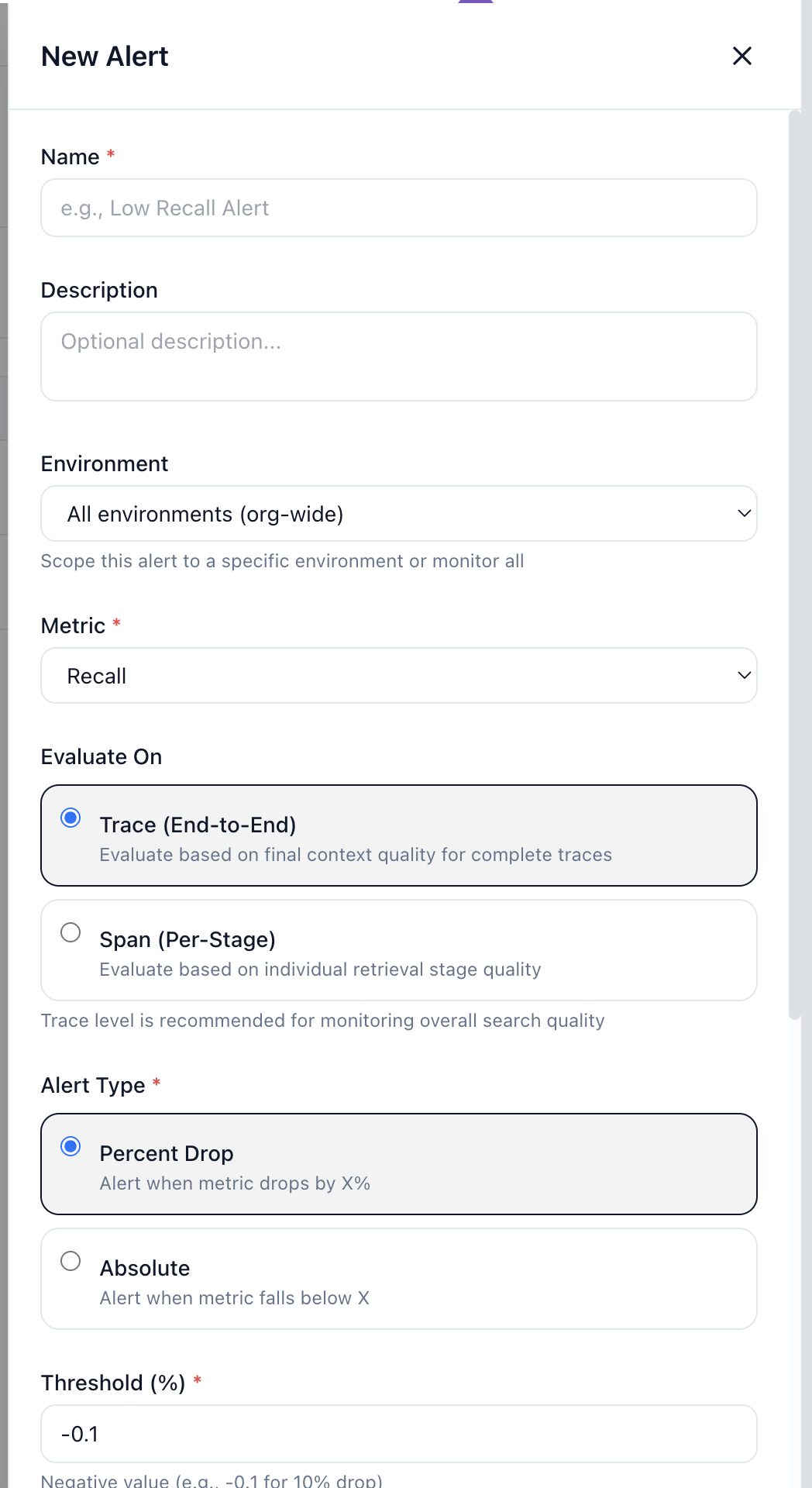
Alert configuration form with metric selection, evaluation scope (Trace/Span), threshold type, and time window options.
Notification Channels
Alerts are sent to webhook endpoints you configure.
Setting Up a Webhook Channel
- Go to Alerts → Channels
- Click New Channel
- Enter:
- Name: Descriptive name (e.g., "Slack #alerts")
- Channel Type: Webhook, Email, or Slack
- URL: Your webhook endpoint
- Enable the channel
- Click Create Channel

Channels page showing configured webhook with status and URL.
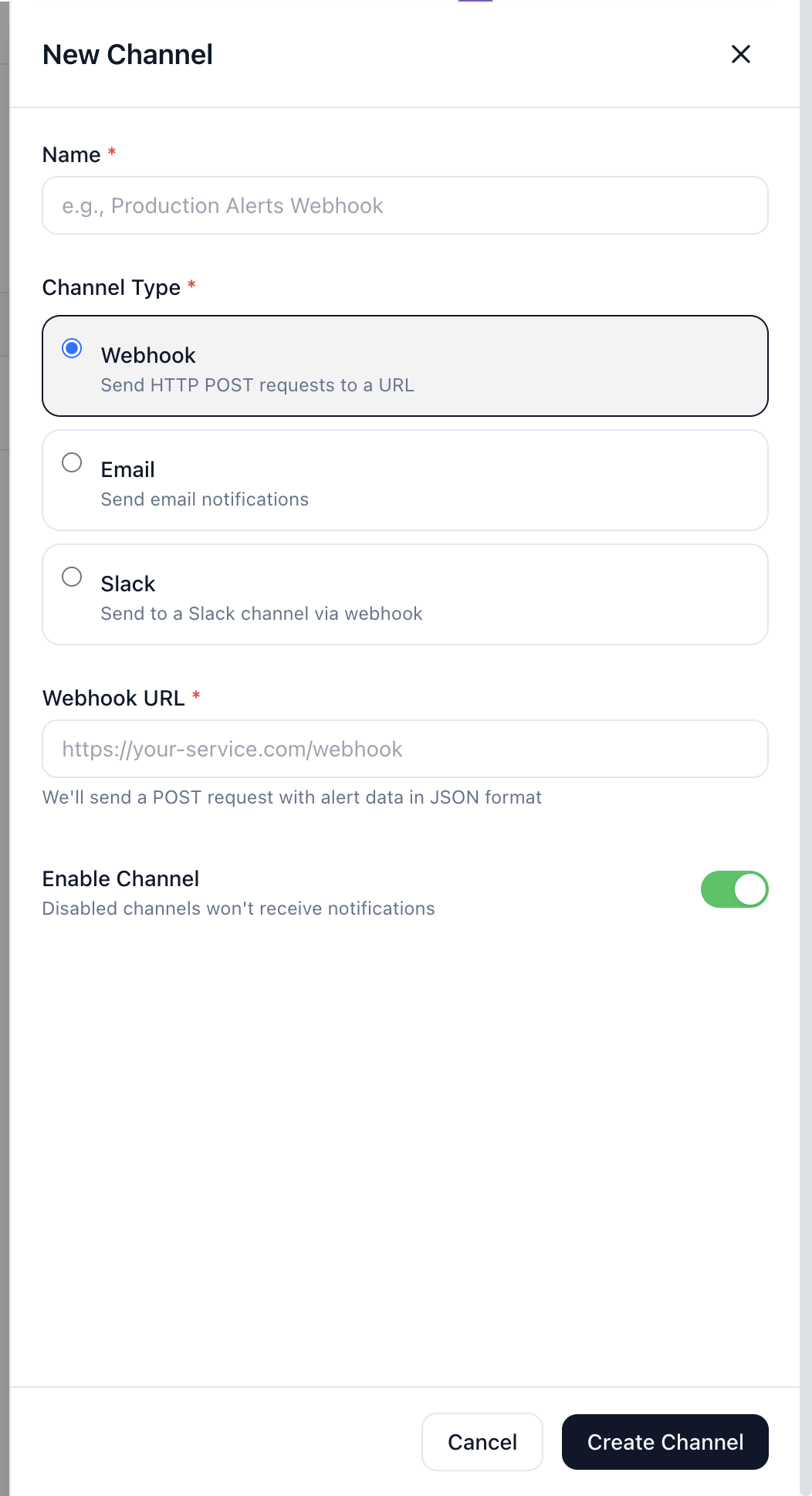
Channel configuration with Webhook, Email, and Slack options.
Webhook Payload
When an alert fires, Seer sends a POST request with this payload:
{
  "alert_id": "uuid",
  "alert_name": "Quality Drop - Recall",
  "status": "firing",
  "metric_type": "recall",
  "threshold_type": "percent_drop",
  "threshold": -0.2,
  "current_value": 0.65,
  "previous_value": 0.82,
  "change_percent": -0.207,
  "fired_at": "2025-01-01T12:00:00Z",
  "org_id": "uuid",
  "env_id": "uuid",
  "dashboard_url": "https://app.seersearch.com/monitoring"
}
Slack Integration
Use Slack's Incoming Webhooks to send alerts to a channel:
- Create an Incoming Webhook in Slack
- Add the webhook URL as a Seer channel
- Link the channel to your alerts
PagerDuty Integration
Use PagerDuty's Events API:
- Create a PagerDuty service with Events API integration
- Use the integration URL as your Seer webhook
- Map the payload fields to PagerDuty's format via a middleware (e.g., AWS Lambda, Zapier)
Alert History
View past alerts in Alerts → History:
- Status: Firing or resolved
- Timestamp: When the alert fired
- Metric values: Current and previous values
- Change percent: How much the metric changed
Filter by alert rule or status to find specific events.
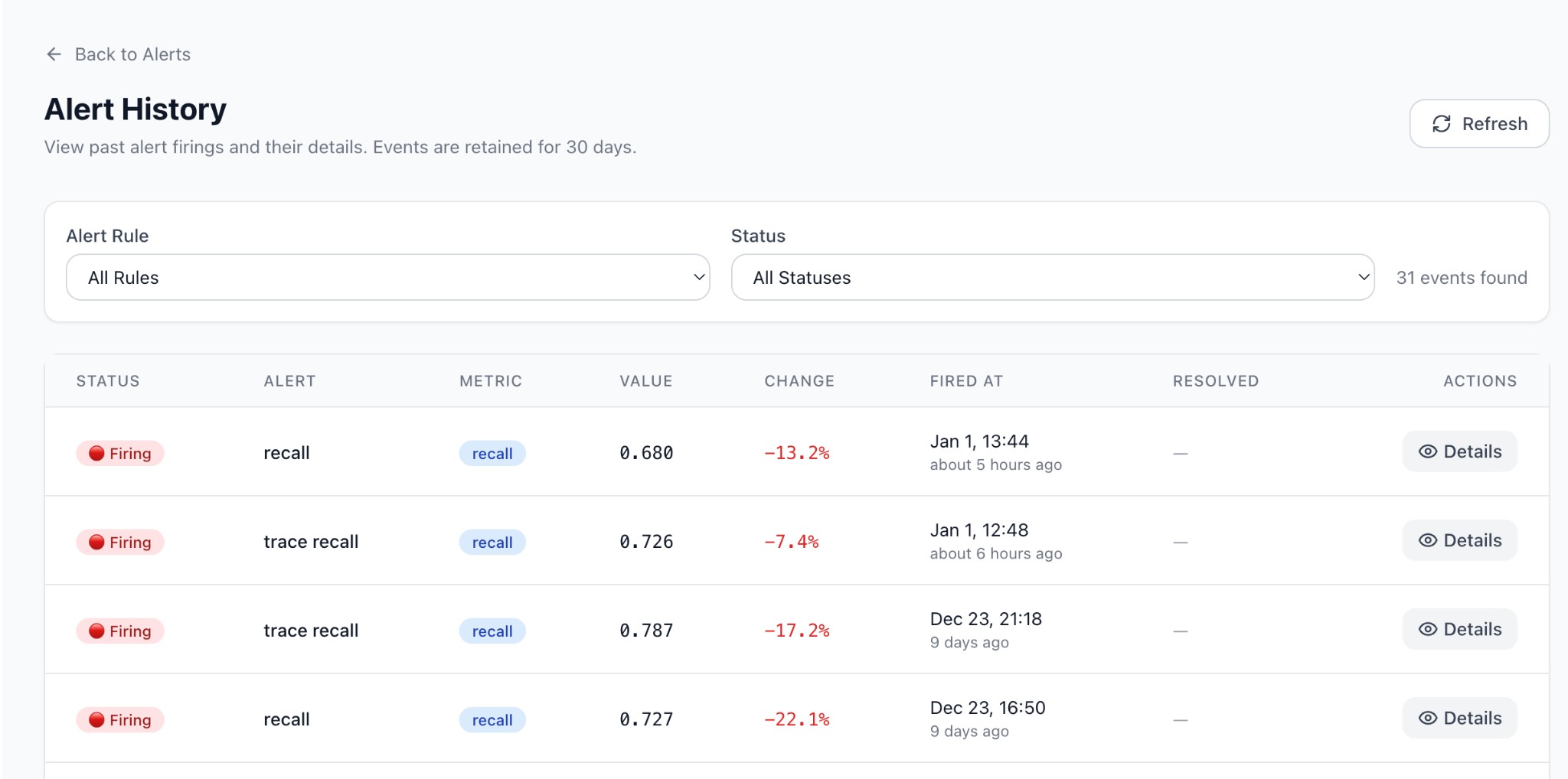
Alert History showing past firings with status, metric values, change percentage, and timestamps.
Best Practices
1. Start with Defaults
The default alerts catch major regressions. Tune thresholds after observing your baseline.
2. Use Environment Scoping
Create separate alerts for prod vs staging:
prod: Recall < 70% absolute (critical)
staging: Recall -30% drop (warning)
3. Set Appropriate Cooldowns
- Critical alerts: 15-60 minutes (fast escalation)
- Warning alerts: 4-24 hours (reduce noise)
4. Test Your Webhooks
Use a service like webhook.site to test before connecting to Slack/PagerDuty.
Coming Soon
- Metadata filtering (alert on specific
feature_flagvalues) - Resolved notifications (when metrics recover)
- Richer Slack formatting (interactive messages with action buttons)
See Also
- Metrics — Metric definitions
- Production Monitoring — Dashboard overview
- Change Testing — A/B testing