Logs Explorer
Drill into individual queries to understand exactly what happened—which documents were retrieved, how Seer scored them, and why quality metrics are what they are.
Prerequisites: You have data flowing through Seer (see Quickstart) and understand Metrics.
Why Use Logs?
Aggregate dashboards show trends, but logs answer the hard questions:
| Question | Answer in Logs |
|---|---|
| Why did this query fail? | See exactly which documents were retrieved and why they were marked irrelevant |
| Which document is missing? | Ground truth validation shows which gold docs weren't retrieved |
| How did multi-hop perform? | Trace view shows recall progression across each hop |
| What did Seer actually see? | Full context passages with relevance labels and scores |
Two View Modes
The Logs page offers two ways to explore your data:
Traces View (Default)
Best for multi-hop RAG and understanding end-to-end query flows.
- Groups related spans by
trace_id - Shows the complete journey from query → retrieval → answer
- Displays final context metrics (what actually went to the LLM)
- Expandable tree visualization of span hierarchy
Records View
Best for individual record inspection and debugging specific retrievals.
- Shows each evaluation as a single row
- Quick access to all metrics (recall, precision, F1, latency)
- Click any row to open the detail drawer
- Use Traces when debugging why a multi-step query failed
- Use Records when scanning for low-performing individual retrievals
Traces view with an expanded multi-hop trace showing the span tree, metrics per hop, and final context marker.
Filtering & Search
Find specific queries quickly using the filter toolbar:
| Filter | Options |
|---|---|
| Search | Free-text search across task/query content |
| Status | All, Succeeded only, Failed only |
| Quality | All, Excellent, Good, Fair, Poor |
| Environment | Filter by your environment (dev/staging/prod) |
Filters work across both Traces and Records views.
Traces View Deep Dive
Trace Table Columns
| Column | Description |
|---|---|
| When | Timestamp of the first span in the trace |
| Query / Task | The original user query |
| Spans | Number of spans (retrieval hops) in the trace |
| Overall | Final recall against the main question (toggle Final/Avg) |
| Subquery | Per-hop recall against hop-specific queries |
| Depth | Maximum nesting depth of the trace tree |
| Latency | Total end-to-end latency |
| Quality | Quality grade based on final recall |
Metric Mode Toggle
Switch between two views of the Overall metric:
- Final: Recall of the final context that was passed to the LLM
- Avg: Average recall across all spans in the trace
For most debugging, Final is what matters—it's what the user actually experienced.
Expanding a Trace
Click any trace row to expand and see its spans in a tree structure:
- Tree lines show parent-child relationships
- Span badges indicate type (retrieval, rerank, llm_call, etc.)
- Final context badge marks which span's context was used for the answer
- Delta indicators show how each hop changed overall recall

Trace Detail Sidebar
Click the View button (↗) on any trace to open the full trace sidebar:
| Section | What You See |
|---|---|
| Task / Question | Original query with trace ID and span count |
| Final Answer Quality | Recall, precision, F1, nDCG with visual bars |
| Journey Timeline | Recall progression chart + timeline of each hop |
| Ground Truth Validation | GT recall/precision if gold docs were provided |
| Performance Breakdown | Total latency, average per hop, slowest/fastest spans |
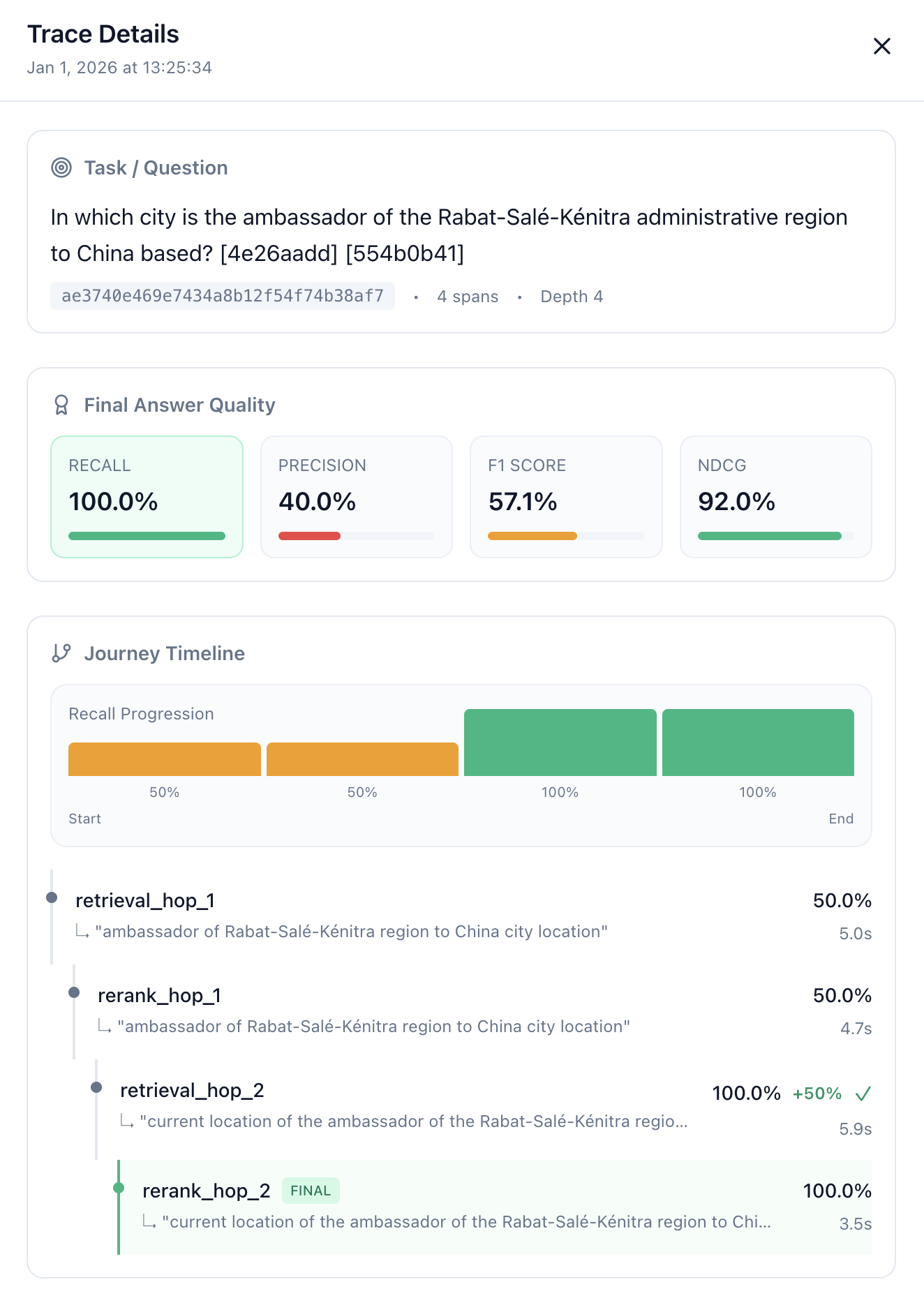
Trace Detail Sidebar with Final Answer Quality metrics and Journey Timeline showing recall progression from 50% → 100% across hops.
Records View Deep Dive
Records Table Columns
| Column | Description |
|---|---|
| When | Timestamp of the record |
| Task / Question | The query that was evaluated |
| Recall | Fraction of requirements covered |
| Precision | Fraction of documents supporting requirements |
| F1 | Harmonic mean of recall and precision |
| Latency | Seer evaluation latency |
| Quality | Grade (Excellent/Good/Fair/Poor) |
Sorting
Click any column header to sort:
- First click: ascending
- Second click: descending
- Third click: return to default (newest first)
Record Detail Drawer
Click any record (in either view) to open the detail drawer:
Sections
| Section | Contents |
|---|---|
| Task / Question | The original query text |
| Subquery (multi-hop) | The hop-specific query if part of a trace |
| Evaluation Metrics | Recall, precision, F1, nDCG, latency, quality grade |
| Overall Contribution (multi-hop) | How this hop contributed to the final answer |
| Ground Truth | GT recall/precision if gold docs were provided |
| Context Passages | All retrieved documents with relevance labels |
| Seer Evaluation Output | The raw XML output from Seer's evaluator |
| Trace Info | Trace ID and span ID for correlation |
Passage Visualization
Each passage in the context shows:
- Position and ID (e.g.,
#1 • ID: doc-123) - Gold badge (⭐) if this doc is in ground truth
- Relevant badge if Seer marked it as supporting requirements
- Score from your retriever
- Full text of the passage
- Source if provided
Color coding:
- 🟢 Green border: Relevant passage (correctly retrieved)
- 🟡 Yellow border: Gold doc not marked relevant (missed)
- ⬜ Gray border: Not relevant, not gold
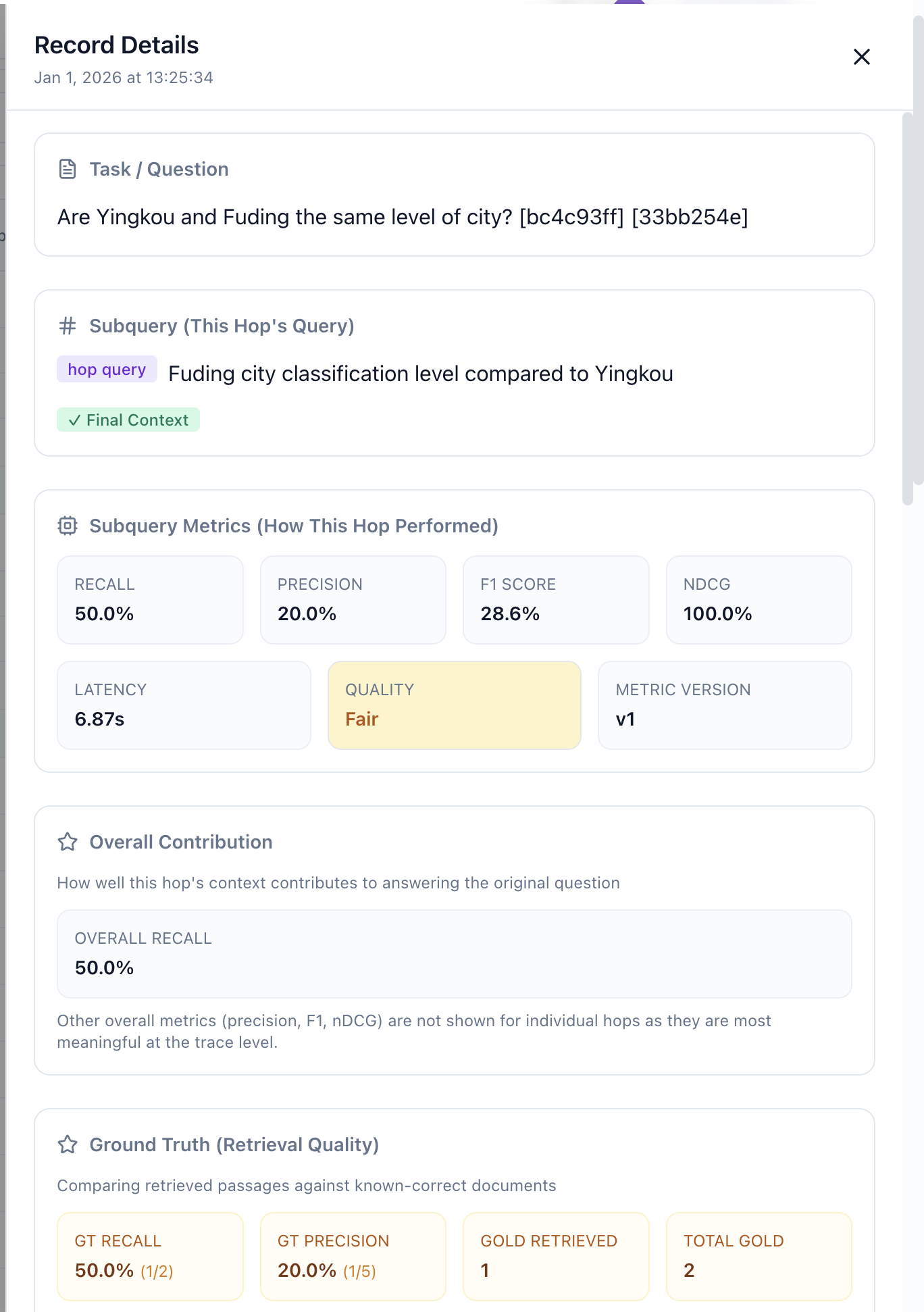
Record Detail Drawer showing a multi-hop span with subquery, metrics, overall contribution, and ground truth validation.
Ground Truth Validation
When you log records with gold_doc_ids, the detail views show:
| Metric | Formula | What It Tells You |
|---|---|---|
| GT Recall | Gold found / Total gold | % of known-good docs you retrieved |
| GT Precision | Gold found / Total retrieved | % of retrieved docs that are gold |
| Missing Gold Docs | List of IDs | Exactly which docs your retriever missed |
This is crucial for understanding retrieval quality independent of Seer's evaluation.
Multi-Hop Retrieval Support
For traces with multiple spans, the Logs page shows the complete journey:
In Traces View:
- Hop count badge on each trace (e.g., "3 hops")
- Subquery column showing per-hop recall
- Depth indicator for complex trace structures
In Detail Views:
- Recall progression chart visualizing improvement across hops
- Delta indicators showing how each hop changed overall recall
- Effectiveness badges (✓) for hops that improved recall
- Final context marker showing which hop's output was used
Example Journey
Query: "What is the capital of France and its population?"
├─ retrieval_hop_1: "capital of France" → 72% recall (+72%)
├─ retrieval_hop_2: "population of Paris" → 85% recall (+13%)
└─ context_join: Combined context → 92% recall (+7%) ✓ FINAL
Working with Logs
Debugging a Low-Quality Query
- Filter by Quality: Poor
- Click a record to open the detail drawer
- Check Context Passages:
- Are relevant docs missing entirely?
- Are docs present but scored low?
- Are irrelevant docs ranked high?
- Check Ground Truth (if available):
- Which gold docs are missing?
- Check Seer Evaluation Output:
- Which requirements were not covered?
Investigating a Failed Trace
- Switch to Traces view
- Filter by Status: Failed
- Expand the trace to see which span failed
- Open the Record Detail for the failed span
- Check the Error Details section
Comparing Multi-Hop Performance
- In Traces view, toggle to Avg metric mode
- Sort by Overall ascending to find traces where avg is much lower than final
- These traces have inefficient early hops that later hops had to compensate for
Pagination
Both views support pagination:
- Page size: 10, 25, 50, 100 records per page
- Navigation: Previous/Next with page number display
- URL persistence: Filters and page state are saved in the URL for sharing
Coming Soon
- Export: Download filtered logs as CSV/JSON
- Saved filters: Save common filter combinations
- Direct linking: Deep links from monitoring dashboard to filtered logs
- Annotations: Add tags and notes to specific records
See Also
- Metrics — Metric definitions
- Multi-Hop Retrieval — Logging traces
- Production Monitoring — Aggregate dashboards
- Context and Event Schema — Data format